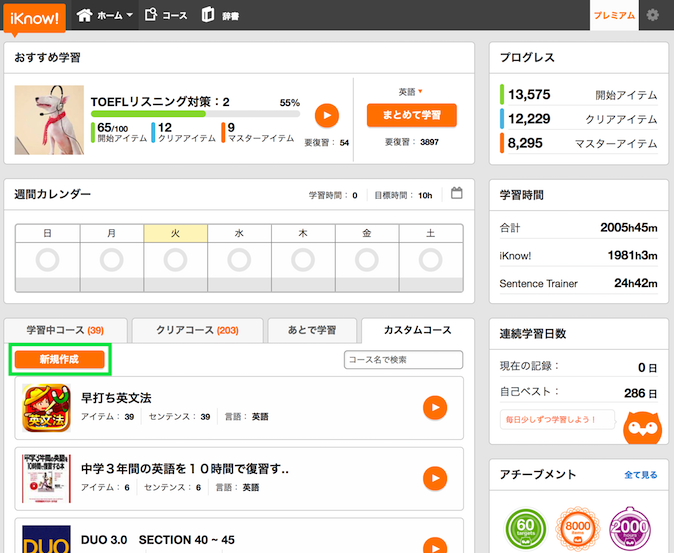
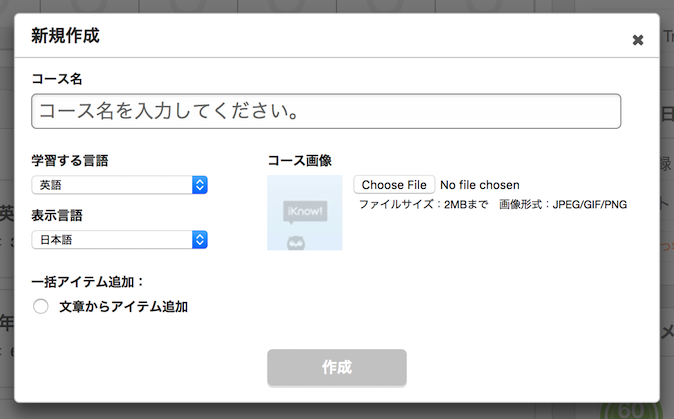
1 コースを作成する ホーム下のカスタムコースのタブから「新規作成」をクリックしてコースを作成してください。 作成するコースの名前、学習/表示する言語、コース画像(2MB以内)を指定し、作成ボタンを押してください。 ※学習/表示する言語は「日本語」、「英語」、「中国語」のみオフィシャルにサポートしています。(他の言語を選択することは可能ですが、ご利用の環境によっては一部対応していない場合があります。)
作成するコースの名前、学習/表示する言語、コース画像(2MB以内)を指定し、作成ボタンを押してください。 ※学習/表示する言語は「日本語」、「英語」、「中国語」のみオフィシャルにサポートしています。(他の言語を選択することは可能ですが、ご利用の環境によっては一部対応していない場合があります。)
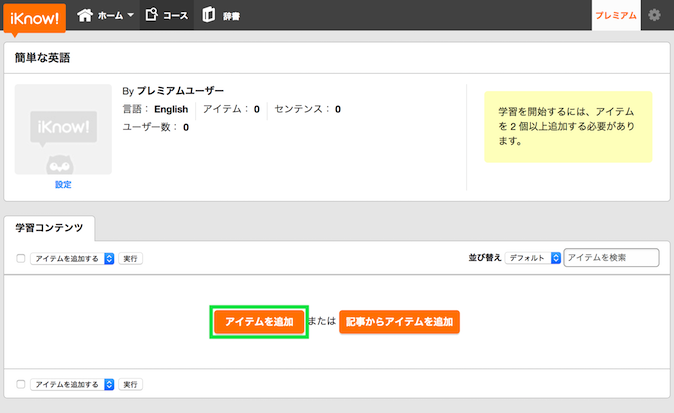
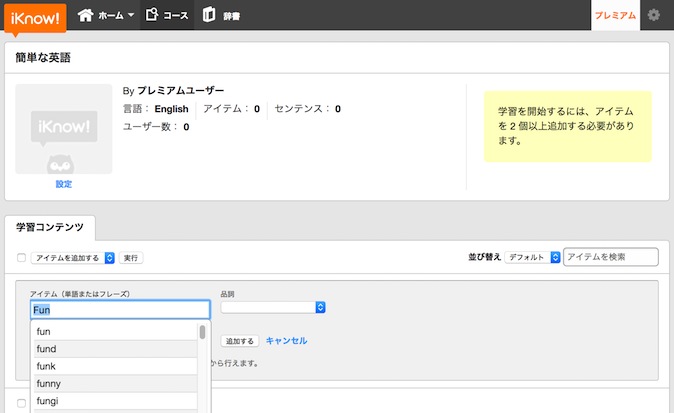
2 アイテムを作成する 「アイテムを追加」をクリックしてコースにアイテムを登録してください。 ※コースを開始するには、10アイテム以上必要となります。※1コースに最大500アイテムまで登録できます。 アイテム(単語またはフレーズ)、レスポンス(アイテムの訳)、品詞を入力してください。入力したワードとマッチするものはプルダウンで表示されます。 ※アイテムはなるべく文字数制限内(半角90文字)で作成してください。
アイテム(単語またはフレーズ)、レスポンス(アイテムの訳)、品詞を入力してください。入力したワードとマッチするものはプルダウンで表示されます。 ※アイテムはなるべく文字数制限内(半角90文字)で作成してください。
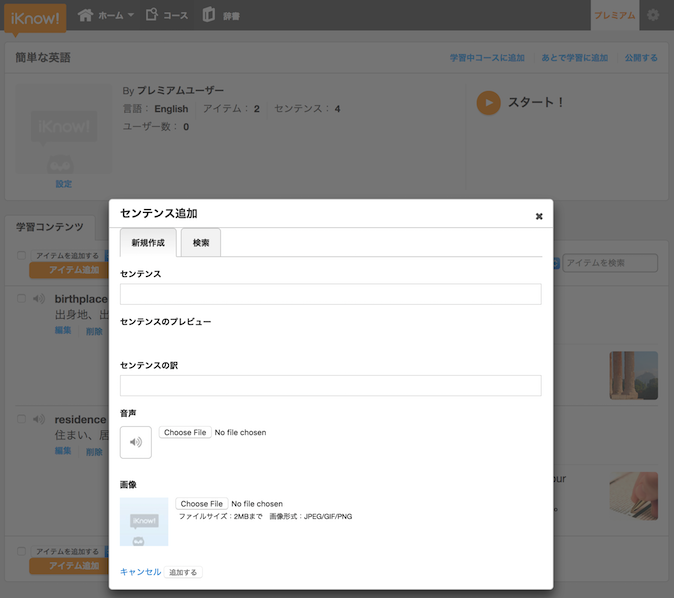
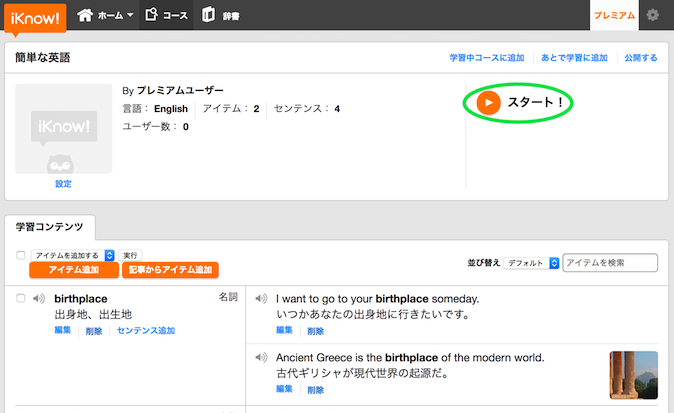
3 センテンスを作成する 「センテンス追加」をクリックすると、アイテムに関連したセンテンスを登録できます。 既にセンテンスがある場合は「センテンス作成」をクリックすると「おすすめ」が表示されます。センテンスにカーソルを合わせて「追加する」をクリックします。 オリジナルのセンテンスを作成する場合は「新規作成」タブでセンテンス、センテンスの訳を入力してください。音声、画像(2MB以内)をつけることもできます。
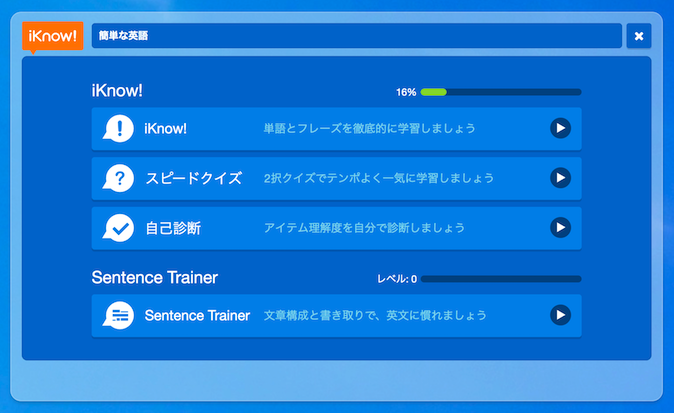
4 作成したコースを学習する あなたが作成したコースを学習することができます。 ※コースを開始するには、10アイテム以上必要となります。※1コースに最大500アイテムまで登録できます。 iKnow!アプリであなたが作成したコースの学習を行えます。
 既にセンテンスがある場合は「センテンス作成」をクリックすると「おすすめ」が表示されます。センテンスにカーソルを合わせて「追加する」をクリックします。
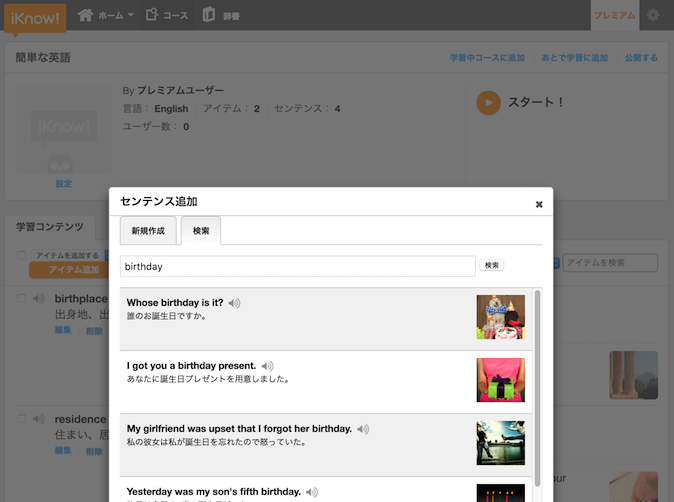 オリジナルのセンテンスを作成する場合は「新規作成」タブでセンテンス、センテンスの訳を入力してください。音声、画像(2MB以内)をつけることもできます。