iKnow

Welcome to iKnow!

Jump into the Guided Tour below to learn all about iKnow!
Learn how to use iKnow! most efficiently.

Start Tour

What makes iKnow! different?

The beauty of iKnow! is that it makes learning easy. The system tells you what to study
and when. Based on your goals and performance, iKnow! creates a study schedule
personalized for you.

Free Trial

Sign up to get five free iKnow! study sessions.
After that, you need to become a Pro user to continue studying.

iKnow! Pro Memberships

iKnow! Pro users have unlimited study access across the PC, iPhone App, and Android App.Sign up for a Pro account now!

Get to know the important pages in iKnow!
Click through the buttons below to see in-depth views of each page.
Sign Up Now!

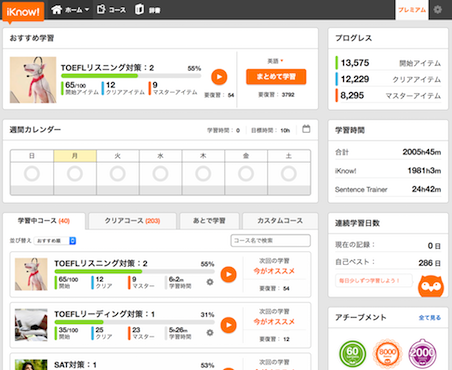
Home is your learning dashboard.
Here you'll find your Study Recommendations, Progress Badges, Skills Training, and Study Calendar.

iKnow! Terms

[ Items ]

Items are the basic learning blocks of iKnow! They can be either words or phrases.

[ iKnow! Study Application ]

iKnow! presents items in a pattern optimized for efficient learning. The training sequence is based on proven principles in learning science. The application tests your understanding of an item, while sentences, images, and audio combine to create a deep learning experience.

A : Study Recommendations

After you choose your courses and set your weekly study target, iKnow! will tell you what's best to study next.

B : Progress Badges

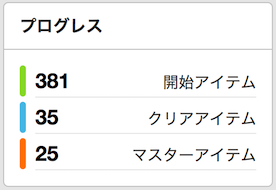
Track your progress across:
* Studied Items
* Mastered Items
* Completed Courses
* Sentences Studied
* Time Studied

C : Skills Training

Practice your listening and speaking with our Skills Training applications.

D : Study Calendar

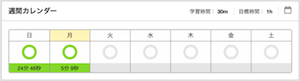
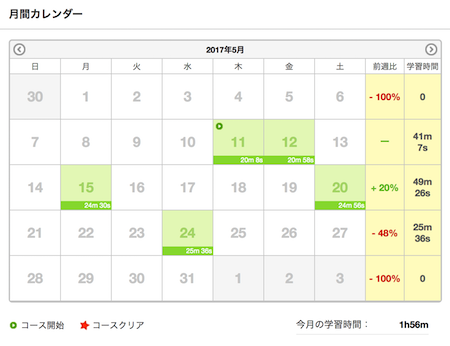
See how much you studied on each day and compare your progress each week to the previous week. Click on any day to get a detailed view of your activity that day.

Get to know the important pages in iKnow!
Click through the buttons below to see in-depth views of each page.
Sign Up Now!

My Courses is your course management center.
Set your weekly Study Target and launch any of your courses.

A : Focus

Courses added to Focus will appear on your Home page study recommendations. (You can set a maximum of eight courses for Focus.)

B : Library

Store courses for future study in your Library. You can add any course from your Library to Focus.

C : Completed

Keep track of all the courses you've completed. Completed courses will also come up for review when the time is right. Recommendations to review completed courses will appear on your Home page.

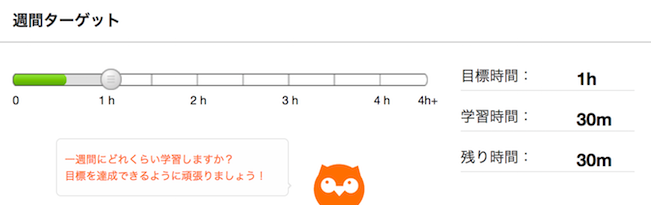
D : Weekly Study Target

Tell us how many minutes you want to study each week, and iKnow! will keep you on track to hit your goals. Changing your study target will impact the estimated starting and completion date for all your courses.

Get to know the important pages in iKnow!
Click through the buttons below to see in-depth views of each page.
Sign Up Now!

We currently offer official courses across four categories.
iKnow! users have also created countless courses for their own study or for sharing with others.

A : iKnow! Diagnostic

A five-minute diagnostic test will place you in a Japanese course appropriate to your level.

B : Japanese Core

Learn hiragana, katakana, and the top 6,000 words in Japanese.

C : Simplified Chinese

Learn the words and characters necessary for reading Chinese newspapers in simplified characters.

D : Traditional Chinese

Learn the words and characters necessary for reading Chinese newspapers in traditional characters.

E : English Vocabulary

Learn SAT words and high-level erudite English vocabulary.

Get to know the important pages in iKnow!
Click through the buttons below to see in-depth views of each page.
Sign Up Now!

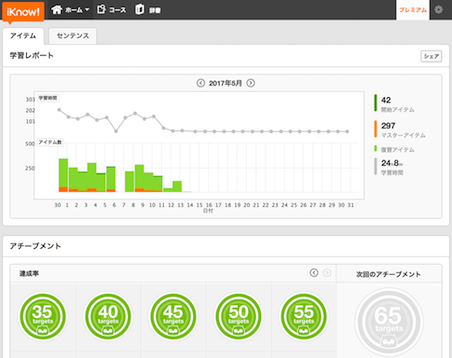
Your Progress Report illustrates your progress on a daily and monthly
basis across iKnow! and the Skills Training applications.

A : iKnow! Progress Charts

Visualize how much you study every day in iKnow! Different colors indicate time studied, items studied, and items mastered.

B : Skills Training Progress Charts

Visualize how much you study in the Listening and Speaking applications. See both time and sentences studied.

Learn how to enroll in courses and get started!
Click through the buttons below to see in-depth views of each page.
Sign Up Now!

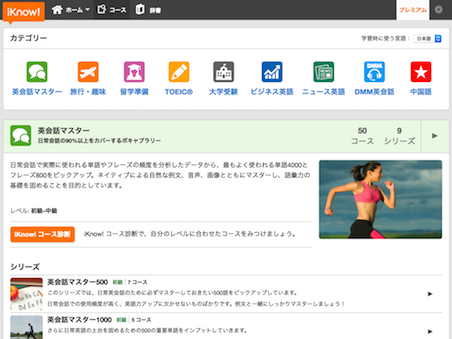
Find a course that matches your interests from official courses (browse categories) or user-created courses (search courses).

Course Categories

After you find a course, click the upper-right Add to My Courses link.

* You can also try out the course right away by clicking the Study button.

Course Page

Learn how to enroll in courses and get started!
Click through the buttons below to see in-depth views of each page.
Sign Up Now!

Adding a course will add it to Focus, or if Focus is full, to your Library.

iKnow! will recommend courses in Focus for you at a pace best suited to your target and performance. You can add a maximum of eight courses to Focus. Courses that you can't focus on now will be added to your Library for future study.

My Courses

Learn how to enroll in courses and get started!
Click through the buttons below to see in-depth views of each page.
Sign Up Now!

Weekly Study Target

Before you start studying, drag the slider to set your Study Target. Your Study Target is how many minutes you want to study per week.
Hitting your target every week is the best way to stay on track and make progress.

My Courses

Learn how to enroll in courses and get started!
Click through the buttons below to see in-depth views of each page.
Sign Up Now!

Recommendations for your Focus courses will appear on your Home page.
Following these messages will ensure you make smooth progress.

Home Page: Study Messaging

A : Course Overview

The number of items studied and mastered for that course.

B : Course Progress

The percent of the course completed.

C : Study Messaging

What iKnow! recommends you study next.

D : Study Button

Hit the Study button to launch the iKnow! application and study the items currently eligible for study in that course.

E : Study Target

Keep track of your weekly study progress and see how many more minutes you have to hit your Study Target.

Learn how to enroll in courses and get started!
Click through the buttons below to see in-depth views of each page.
Sign Up Now!

Launch the iKnow! application and get started studying!

Removing Items

When you start a course, you'll see an overview of all the items in that course. Uncheck items that you don't want to study. All removed items will be removed from the course.

Course Main

The Course Home page gives you an overview of your progress in the course and session settings.

A : Course Overview

Course progress, item progress, and time studied.

B : Study Messaging

The number of items in the course eligible to study today.

C : Session Size: Items

Choose to study 5, 10, or 20 items in a session.

D : Item Preview

Preview the items you'll study in this session and remove those you don't want to study.

E : Start

Start studying inside iKnow!

Study Screens

The study screen for new items provides the cue (the word), response (the definition), audio, and sample sentences for that item. Practice listening to and saying the word before clicking next. After learning a few words, you'll be tested on your knowledge of those words.

Keyboard Shortcuts

Item Screen:
* The up and down arrow keys open the sentences tab
* The left and right arrow keys scroll sentences
* S opens spell practice mode
* Esc closes spell practice mode

Quiz Screens:
* Use the arrow keys to navigate choices and the enter key to make selections

Introducing other features to help you learn! Sign Up Now!

Study Calendar

All your study activity is automatically reflected in your study calendar. Just click on any day to see a detailed view of that day's study activity.

Speaking Training: Shadowing

Shadowing is a good way to improve your speaking skills and your control of sentence patterns. Hear a sentence, record yourself saying that sentence, and then compare yourself to the model audio.

Listening Training: Dictation

Dictation is a good way to improve your listening skills and your control of sentence patterns. Hear a sentence and type in the missing words.

We're here to support. We'll do our best to solve any problems you have. Sign Up Now!

iKnow! Support

If you need support, please check out our Help area. Our FAQ's address some common problems and questions.
Our User Voice forums are a great source of user knowledge. Use these forums to vote for new features and report bugs.
If you still have issues, you can contact us directly.

* We'll reply to direct support requests as soon as we can, but please be patient if we can't respond to you right away.